Grok AI Assistant Comes to Microsoft Office for Free
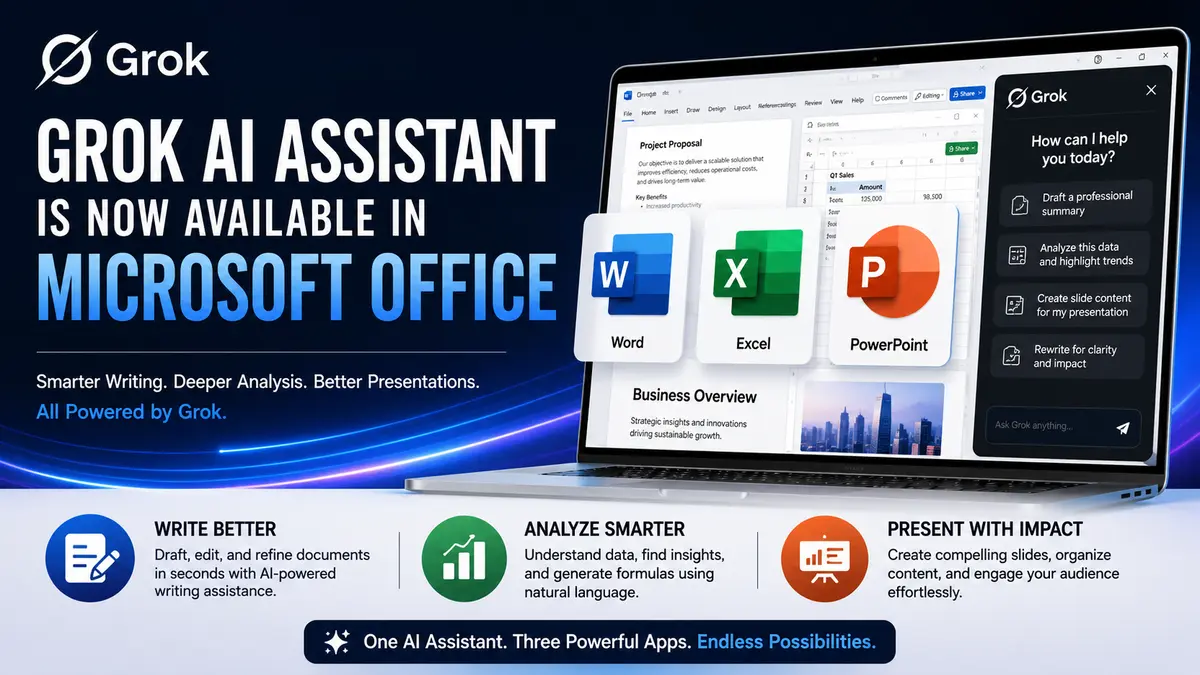
Artificial intelligence is becoming a standard part of workplace productivity, and Grok AI Assistant has taken a major step by expanding into Microsoft Office applications. Users can now access Grok directly inside Word, Excel, and PowerPoint through free add-ins, allowing them to generate text, analyze spreadsheets, summarize documents, and create presentations without leaving Microsoft Office.
This move marks one of xAI’s biggest productivity expansions yet. It also introduces a new alternative to Microsoft’s own Copilot, giving millions of Office users another AI-powered assistant for everyday work.
Grok AI Assistant Is Now Available in Microsoft Office
Grok AI Assistant has officially expanded beyond its standalone chatbot experience and is now available inside Microsoft Word, Excel, and PowerPoint through dedicated Microsoft 365 add-ins. This marks one of xAI’s most significant productivity launches, allowing users to access AI-powered assistance directly within the applications they already use every day. Instead of opening a separate browser window or switching between multiple tools, users can interact with Grok while working on documents, spreadsheets, or presentations, making everyday tasks faster and more convenient.
This launch is particularly significant because Microsoft Office remains one of the most widely used productivity platforms in the world. Millions of businesses, schools, universities, and government organizations rely on Word, Excel, and PowerPoint for daily operations. By integrating Grok into this ecosystem, xAI is expanding its reach from a consumer-facing chatbot to an AI assistant capable of supporting professional workflows on a much larger scale.
A Shift Toward AI-Native Productivity
The Office integration reflects a broader transformation in workplace software. Modern productivity tools are no longer limited to editing text or creating spreadsheets—they are increasingly becoming intelligent assistants that can help users think, write, organize, and analyze information.
With Grok embedded directly into Microsoft Office, users can:
- Generate ideas without leaving their document.
- Refine drafts while writing instead of editing later.
- Get explanations for unfamiliar concepts or data.
- Complete repetitive tasks more efficiently.
- Stay focused by reducing the need to switch between applications.
This seamless workflow is one of the biggest advantages of AI integration, especially for professionals who spend most of their workday inside Microsoft Office.
Built for Everyday Productivity
Unlike AI tools designed for a single purpose, Grok’s Office integration supports a wide variety of everyday tasks across different industries and professions. Whether someone is preparing a quarterly business report, analyzing financial data, designing a client presentation, writing academic research, or creating internal documentation, the assistant is intended to provide contextual help throughout the process.
Because Grok operates within the document itself, users can ask follow-up questions, refine generated content, or request alternative versions without interrupting their workflow. This conversational approach makes the experience feel more like collaborating with a digital assistant than using a traditional software feature.
Designed for Individuals and Organizations
The Microsoft Office integration is not aimed solely at enterprise customers. It can also benefit:
- Students preparing assignments, research papers, and classroom presentations.
- Teachers and educators creating lesson plans, quizzes, and teaching materials.
- Small business owners drafting proposals, invoices, and business documents.
- Marketing teams developing campaigns, presentations, and promotional content.
- Financial professionals reviewing spreadsheets and summarizing reports.
- Project managers organizing project documentation and meeting materials.
This broad appeal makes Grok useful across education, business, finance, healthcare, consulting, and many other industries where Microsoft Office is already part of daily work.
A Strategic Expansion for xAI
Launching Grok inside Microsoft Office represents an important milestone for xAI’s long-term strategy. Until now, Grok has been known primarily as an AI chatbot available through X (formerly Twitter) and xAI’s own platforms. By expanding into one of the world’s most established productivity ecosystems, the company is positioning Grok as a practical workplace assistant rather than just a conversational AI.
The move also demonstrates how competition in artificial intelligence is shifting. Instead of competing only on chatbot performance, AI companies are increasingly focused on integrating their models into the software people already use. Success will depend not only on generating accurate responses but also on helping users complete real tasks more efficiently within familiar applications.
What This Means for Office Users
For many users, the biggest advantage of this integration is convenience. Rather than treating AI as a separate destination, Microsoft Office users can now access intelligent assistance as part of their normal workflow. This reduces time spent copying content between applications, minimizes distractions, and allows users to focus more on reviewing ideas and making decisions instead of handling repetitive work manually.
As AI continues to become a standard feature of productivity software, Grok’s arrival in Microsoft Office gives users another powerful option for enhancing their daily workflow while maintaining control over the final content they create.
What Is Grok AI Assistant?
Grok AI Assistant is a generative artificial intelligence (AI) assistant developed by xAI, the AI company founded by Elon Musk. It is built on xAI’s family of large language models, known as the Grok models, which are designed to understand natural language, reason through complex questions, generate human-like responses, and assist with a wide variety of personal and professional tasks. Instead of simply retrieving information like a traditional search engine, Grok analyzes user prompts, understands context, and produces original responses that can be refined through follow-up conversations.
The assistant was initially introduced as an AI chatbot integrated with X (formerly Twitter), where users could ask questions about current events, technology, science, entertainment, programming, and more. Since then, xAI has significantly expanded Grok’s capabilities, transforming it from a conversational chatbot into a broader productivity and research tool that can be used across multiple platforms and applications.
Unlike many earlier AI assistants that focused primarily on answering questions, Grok is designed to support real-world workflows. It can help users brainstorm ideas, draft written content, explain technical concepts, summarize lengthy documents, solve coding problems, analyze information, and assist with creative projects. This makes it useful for professionals, students, developers, researchers, marketers, and everyday users looking to save time on repetitive or knowledge-intensive tasks.
Core Capabilities of Grok AI Assistant
Some of Grok’s most important capabilities include:
- Natural language conversations that allow users to ask questions in plain English without learning special commands.
- Advanced reasoning for breaking down complicated topics and solving multi-step problems.
- Content generation for articles, emails, reports, summaries, social media posts, and other written materials.
- Programming assistance with code generation, debugging, and explanations for multiple programming languages.
- Research support by organizing information into concise summaries and highlighting key points.
- Data interpretation to explain tables, numerical information, and structured datasets where supported.
- Creative assistance for brainstorming ideas, drafting outlines, and developing presentations or project plans.
Another distinguishing feature of Grok is its conversational approach. Users can continue asking follow-up questions, request revisions, or explore related topics without starting a new conversation. This ongoing context helps produce more relevant and personalized responses, making Grok feel more like a collaborative assistant than a simple question-and-answer tool.
As xAI continues to improve its AI models, Grok is evolving beyond a standalone chatbot into a comprehensive digital assistant that integrates with productivity software, helping users complete everyday tasks more efficiently while keeping human oversight at the center of the workflow.
Which Microsoft Office Apps Support Grok AI Assistant?
At launch, Grok AI Assistant is available for three of Microsoft’s most widely used productivity applications: Microsoft Word, Microsoft Excel, and Microsoft PowerPoint. These applications cover the majority of everyday office tasks, from drafting documents and analyzing data to creating presentations. By integrating directly with these programs, Grok enables users to access AI-powered assistance without leaving the Microsoft Office environment, helping streamline workflows and reduce the need to switch between multiple applications.
Each Office application uses Grok differently based on its purpose. Rather than offering a one-size-fits-all experience, the assistant adapts its capabilities to the type of work being performed. Whether you’re writing a report, reviewing financial data, or preparing a presentation for clients or colleagues, Grok provides context-aware suggestions that help users work more efficiently while keeping full control over the final output.
| Microsoft Office App | Primary AI Capabilities | Typical Use Cases |
|---|---|---|
| Microsoft Word | Writing assistance, rewriting, proofreading, summarization, brainstorming, document drafting | Reports, proposals, emails, meeting notes, articles |
| Microsoft Excel | Formula guidance, spreadsheet analysis, data interpretation, calculations, trend identification | Budgets, financial reports, sales analysis, dashboards |
| Microsoft PowerPoint | Presentation outlines, slide content generation, speaker notes, content organization | Business presentations, lectures, project updates, training materials |
Together, these three applications represent the core of Microsoft’s productivity suite, making Grok useful for a wide range of users, including students, educators, business professionals, researchers, analysts, consultants, and content creators. Because the AI works within familiar Office applications, users can enhance their productivity without learning entirely new software or changing their existing workflow.
Grok AI Assistant Features in Microsoft Word
Microsoft Word is one of the most widely used word-processing applications in the world, making it a natural starting point for Grok’s productivity features. With the Grok add-in integrated directly into Word, users can receive AI-powered assistance throughout the entire writing process—from generating initial ideas to polishing the final draft. Instead of constantly switching between documents and external AI tools, users can interact with Grok from within Word, helping them stay focused and complete writing tasks more efficiently.
The assistant is designed to support a variety of writing needs rather than replacing human creativity. It can help overcome writer’s block, improve document quality, simplify complex language, and organize information into a clear structure. Whether you’re creating a business proposal, academic paper, technical report, marketing document, or meeting summary, Grok can provide suggestions that save time while allowing you to review and customize the final content.
Writing from Scratch
Starting with a blank page is often one of the biggest challenges for writers. Grok can generate a first draft based on a simple prompt, giving users a solid foundation to build upon. It can create well-structured content while adjusting its tone and style to suit different audiences and purposes.
Common writing tasks include:
- Business reports
- Project proposals
- Professional emails
- Blog articles
- Press releases
- Meeting agendas
- Training documents
- Product descriptions
- Research summaries
Rather than producing generic text, users can refine their prompts and ask Grok to generate multiple versions, expand sections, or rewrite specific paragraphs until the document matches their requirements.
Improving Existing Documents
Grok is equally useful for documents that have already been written. Instead of rewriting everything manually, users can ask the AI to improve specific sections while preserving the original meaning.
It can help with tasks such as:
- Correcting grammar and spelling mistakes.
- Improving sentence clarity and readability.
- Making writing more concise or more detailed.
- Adjusting the tone for formal, casual, or professional audiences.
- Removing repetitive language.
- Strengthening introductions and conclusions.
- Improving transitions between paragraphs.
These editing capabilities make Grok valuable not only for creating new content but also for refining important documents before they are shared or published.
Summarizing Long Documents
Professionals often work with lengthy reports, contracts, research papers, and meeting notes that can take significant time to read. Grok can quickly generate concise summaries that highlight the most important information, helping users understand complex documents more efficiently.
Depending on the user’s needs, Grok can produce:
- Executive summaries
- Key takeaways
- Bullet-point highlights
- Action items
- Main arguments
- Important deadlines or decisions
This feature is particularly useful for managers, executives, researchers, students, and anyone who needs to review large volumes of written information in less time.
Brainstorming and Content Organization
Beyond writing and editing, Grok can also act as a creative brainstorming partner. Users can ask it to suggest ideas, create outlines, recommend headings, or organize scattered notes into a logical document structure. This is especially helpful during the planning stage of reports, proposals, presentations, and long-form articles.
For example, Grok can help users:
- Develop article or report outlines.
- Generate topic ideas.
- Create FAQs.
- Suggest section headings.
- Organize research into a logical flow.
- Recommend improvements to document structure.
Best Practices When Using Grok in Word
To get the most value from Grok, users should treat it as a collaborative writing assistant rather than a replacement for human expertise. AI-generated content should always be reviewed for accuracy, tone, and relevance, particularly when preparing legal, financial, medical, or business-critical documents. Combining Grok’s speed with human judgment helps produce higher-quality documents while reducing the time spent on drafting and editing.
How Grok AI Assistant Helps Excel Users?
Microsoft Excel is an essential tool for professionals who work with numbers, financial reports, business analytics, budgets, and large datasets. While Excel offers powerful features, many users find advanced formulas, data analysis, and spreadsheet management challenging. Grok AI Assistant simplifies these tasks by allowing users to interact with Excel using natural language instead of memorizing complex functions or searching for solutions online.
Rather than replacing Excel’s built-in capabilities, Grok acts as an intelligent assistant that helps users understand their data, solve spreadsheet problems, and complete repetitive tasks more efficiently. Whether you’re a beginner learning formulas or an experienced analyst working with complex datasets, Grok can provide contextual guidance directly within your workflow.
Formula Assistance
One of Grok’s most valuable features is helping users understand and create Excel formulas. Instead of remembering syntax or searching through documentation, users can simply describe what they want to achieve in plain language.
For example, Grok can assist with:
- SUM, AVERAGE, COUNT, and other basic functions.
- IF, IFS, and nested conditional formulas.
- XLOOKUP and VLOOKUP functions.
- INDEX and MATCH combinations.
- Date and time calculations.
- Text manipulation functions.
- Conditional formatting formulas.
- Dynamic array functions where supported.
It can also explain why a formula isn’t working, helping users troubleshoot common spreadsheet errors more quickly.
Spreadsheet Analysis
Large spreadsheets often contain thousands of rows of data, making it difficult to identify meaningful insights manually. Grok can help users interpret datasets by highlighting patterns, trends, and unusual values that may require further investigation.
It can assist with tasks such as:
- Identifying sales trends over time.
- Comparing monthly or quarterly performance.
- Finding duplicate or missing entries.
- Highlighting unusual changes in data.
- Reviewing financial performance.
- Summarizing key business metrics.
Instead of manually reviewing every worksheet, users can ask Grok questions about their data and receive easy-to-understand explanations.
Explaining Complex Data
Numbers alone do not always tell the full story. Grok can translate complex spreadsheet information into plain-language explanations that are easier for non-technical users to understand.
For example, it can explain:
- Revenue growth and decline.
- Profit margin changes.
- Budget variances.
- Inventory performance.
- Customer sales trends.
- Financial ratios and business indicators.
This feature is especially valuable when preparing reports for managers, clients, or stakeholders who need clear insights rather than raw numbers.
Assistance with Data Organization
Well-organized spreadsheets are easier to maintain and analyze. Grok can recommend ways to improve spreadsheet structure and make large workbooks more manageable.
It can help users:
- Organize tables more efficiently.
- Suggest clearer column headings.
- Recommend sorting and filtering methods.
- Explain when to use Excel Tables or PivotTables.
- Improve worksheet readability.
- Reduce unnecessary duplication of data.
These recommendations can make spreadsheets easier to navigate, particularly for teams working on shared files.
Who Benefits Most from Grok in Excel?
Grok’s Excel capabilities can support a wide range of users, including:
- Accountants preparing financial statements and reconciliations.
- Financial analysts reviewing business performance and forecasting trends.
- Business managers tracking budgets and operational metrics.
- Sales teams analyzing revenue and customer data.
- Students learning spreadsheet functions and data analysis.
- Small business owners managing expenses, invoices, and inventory.
Because users can ask questions in everyday language, Grok lowers the learning curve for people who are less familiar with Excel’s advanced features.
Best Practices for Using Grok AI Assistant in Excel
While Grok can significantly improve productivity, users should always verify important calculations and business decisions before relying on AI-generated results. Excel files containing financial records, confidential business information, or regulatory data should also be handled according to organizational privacy policies. When combined with human expertise, Grok can reduce manual effort while helping users better understand and work with complex spreadsheets.
What Grok AI Assistant Can Do in PowerPoint?
Creating an effective presentation involves much more than adding text to slides. Users must organize ideas, structure information logically, write engaging content, and present key messages in a way that captures the audience’s attention. Grok AI Assistant helps simplify this process by acting as a collaborative presentation assistant within Microsoft PowerPoint. Instead of starting every presentation from scratch, users can rely on Grok to generate ideas, draft slide content, improve organization, and refine messaging while remaining in full control of the final presentation.
Whether you’re preparing a business proposal, classroom lecture, sales pitch, research presentation, training session, or project update, Grok can significantly reduce the time required to build a well-structured presentation.
Generate Presentation Outlines
One of the most time-consuming parts of creating a presentation is deciding how to organize the content. Grok can automatically generate a logical outline based on a simple prompt, giving users a clear roadmap before they begin designing slides.
For example, users can ask Grok to:
- Create a 10-slide presentation on artificial intelligence.
- Build a sales presentation for a new product launch.
- Prepare a project status update for executives.
- Develop a classroom lesson on climate change.
- Outline an investor pitch deck.
The AI can suggest an appropriate sequence of topics, helping users create presentations that flow naturally from one idea to the next.
Draft Slide Content
After generating an outline, Grok can help populate each slide with relevant content. Instead of writing every slide manually, users can request concise, presentation-friendly text that highlights the most important information.
Grok can generate:
- Slide titles
- Bullet points
- Brief explanations
- Key facts and summaries
- Speaker notes
- Calls to action
- Discussion questions
- Presentation conclusions
The content is designed to serve as a starting point, allowing users to review, customize, and expand it according to their audience and objectives.
Improve Existing Presentations
Grok is equally useful for presentations that have already been created. Users can ask the AI to review individual slides or the entire presentation and recommend improvements for clarity, readability, and organization.
It can assist by:
- Simplifying overly complex text.
- Reducing wordy slides.
- Improving the logical flow between sections.
- Making key messages clearer.
- Rewriting content for different audiences.
- Suggesting stronger introductions and conclusions.
- Improving consistency across slides.
These refinements help presenters communicate their ideas more effectively without completely rebuilding their presentations.
Brainstorm Ideas and Presentation Structure
Sometimes the biggest challenge is deciding what to include in a presentation. Grok can function as a brainstorming partner by suggesting topics, examples, supporting arguments, and logical section headings based on the presentation’s objective.
For example, it can help users:
- Generate presentation ideas.
- Recommend supporting examples.
- Suggest case studies.
- Create question-and-answer slides.
- Develop training materials.
- Organize research findings into presentation format.
This makes Grok particularly useful during the planning stage, when users are still developing their message.
Suitable for Many Types of Presentations
Grok’s PowerPoint capabilities are designed to support a wide variety of professional and educational use cases, including:
- Business presentations for meetings and executive briefings.
- Sales pitches for potential clients and customers.
- Academic presentations for schools, colleges, and universities.
- Training sessions for employee onboarding and workshops.
- Project updates for internal teams and stakeholders.
- Research presentations summarizing reports and findings.
- Marketing presentations introducing campaigns and strategies.
Its flexibility allows users from different industries to prepare presentations more efficiently while maintaining their own expertise and creativity.
Best Practices When Using Grok in PowerPoint
Although Grok can accelerate presentation creation, users should review all AI-generated content before presenting it to an audience. Important statistics, technical information, financial figures, and factual claims should always be verified using reliable sources. Users should also personalize the slides by adding relevant visuals, charts, branding, and speaker insights, ensuring the final presentation reflects their own knowledge and communication style rather than relying solely on AI-generated content.
Free Access Makes Grok AI Assistant More Competitive
Perhaps the most surprising aspect of the announcement is pricing.
Many AI productivity tools require premium subscriptions.
The new Grok Office add-ins are being offered free, making advanced AI assistance accessible to a much larger audience.
That immediately positions Grok as an attractive option for students, freelancers, educators, startups, and small businesses looking to reduce software costs.
However, users should keep in mind that future pricing models or premium capabilities may evolve over time as the platform expands.
Grok AI Assistant vs Microsoft Copilot
With Grok AI Assistant now available for Microsoft Office, many users naturally compare it with Microsoft Copilot, Microsoft’s built-in AI assistant for Microsoft 365. While both tools aim to improve productivity through artificial intelligence, they differ in their ecosystems, pricing models, integration depth, and long-term strategies. Choosing between them depends on how you work, which services you already use, and the type of AI assistance you need.
Microsoft Copilot is deeply integrated into the Microsoft 365 ecosystem and is designed to work seamlessly across applications such as Word, Excel, PowerPoint, Outlook, Teams, and OneNote. Grok, on the other hand, focuses on delivering conversational AI assistance within supported Office applications while leveraging xAI’s rapidly evolving language models. Rather than replacing Microsoft Office features, Grok serves as an additional AI option for users who prefer xAI’s approach or want an alternative to Microsoft’s native assistant.
Feature Comparison
| Feature | Grok AI Assistant | Microsoft Copilot |
|---|---|---|
| Microsoft Word Support | ✔ Yes | ✔ Yes |
| Microsoft Excel Support | ✔ Yes | ✔ Yes |
| Microsoft PowerPoint Support | ✔ Yes | ✔ Yes |
| AI Writing Assistance | ✔ Yes | ✔ Yes |
| Document Summarization | ✔ Yes | ✔ Yes |
| Spreadsheet Analysis | ✔ Yes | ✔ Yes |
| Presentation Drafting | ✔ Yes | ✔ Yes |
| Natural Language Conversations | ✔ Yes | ✔ Yes |
| Microsoft 365 Ecosystem Integration | Limited to supported Office add-ins | Deep integration across Microsoft 365 services |
| Entry Cost | Free Office add-ins (at launch) | Often requires Microsoft 365 and Copilot subscription |
Key Differences
Although both assistants perform many similar tasks, their strengths differ in several important areas.
Ecosystem Integration
Microsoft Copilot is built directly into the Microsoft 365 platform, allowing it to connect with Outlook emails, Teams meetings, calendars, OneDrive files, SharePoint documents, and other Microsoft services. This enables workflows that span multiple applications within the Microsoft ecosystem.
Grok currently focuses on productivity within supported Office applications rather than providing the same level of cross-service integration.
AI Experience
Grok emphasizes conversational interactions, allowing users to ask follow-up questions, refine responses, and explore ideas naturally. This makes it well suited for brainstorming, drafting content, explaining concepts, and solving problems through dialogue.
Copilot also supports conversational prompts but places greater emphasis on automating Microsoft 365 workflows and working with organizational data stored across Microsoft’s cloud services.
Pricing
One of Grok’s biggest advantages is accessibility. The Office add-ins are available free at launch, allowing users to try AI-powered productivity features without purchasing a dedicated AI subscription.
Microsoft Copilot, depending on the version and licensing model, often requires a qualifying Microsoft 365 subscription and, for many business features, an additional Copilot license.
Which Assistant Is Better?
There is no single answer because the best choice depends on your specific needs.
Grok AI Assistant may be a better fit if you:
- Want a free AI assistant for Microsoft Office.
- Prefer conversational AI for writing and brainstorming.
- Need help drafting documents, presentations, and spreadsheets.
- Are looking for an alternative to Microsoft’s native AI tools.
Microsoft Copilot may be a better fit if you:
- Already use Microsoft 365 extensively.
- Need AI assistance across Outlook, Teams, OneDrive, and SharePoint.
- Work in an enterprise environment with Microsoft cloud services.
- Want deeper integration with organizational files and workflows.
Can You Use Both?
Yes. Depending on your Microsoft 365 setup and organizational policies, many users can access both Grok and Microsoft Copilot. Some may use Copilot for Microsoft ecosystem tasks, such as summarizing Teams meetings or managing Outlook emails, while relying on Grok for drafting content, brainstorming ideas, or analyzing documents inside Office applications.
As the AI productivity market continues to evolve, competition between Grok, Microsoft Copilot, ChatGPT, Google Gemini, Claude, and other assistants is expected to drive faster innovation and provide users with more powerful tools for completing everyday work.
Also read: Windows 11 July 2026 Update: New Features and Fixes
How to Use Grok AI Assistant in Microsoft Office?
Getting started with Grok AI Assistant in Microsoft Office is designed to be straightforward. Once the Grok add-in is installed, users can access AI-powered assistance directly from supported Office applications without switching to a separate website or desktop application. Whether you’re drafting a document in Word, analyzing data in Excel, or creating a presentation in PowerPoint, the setup process is similar across all supported apps.
The exact installation steps and interface may vary slightly depending on your Microsoft 365 version, operating system, and future updates released by xAI or Microsoft. However, the overall workflow remains simple and user-friendly.
Step 1: Install the Grok Add-in
Begin by opening Microsoft Word, Excel, or PowerPoint and navigating to the Microsoft Add-ins or Microsoft AppSource marketplace. Search for Grok AI Assistant and install the official add-in. After installation, Grok becomes available within the selected Office application, allowing you to access its AI features without leaving your workspace.
Step 2: Sign In to Your Account
After installation, you’ll typically be asked to sign in using your supported account. This allows Grok to authenticate your access, synchronize available features, and apply any account-specific permissions or subscription benefits where applicable.
Step 3: Open the Grok Panel
Once signed in, launch the Grok side panel from the Office ribbon or add-ins menu. The panel serves as your AI workspace, where you can enter prompts, ask questions, and interact with Grok while keeping your document, spreadsheet, or presentation visible on the screen.
Because the AI remains alongside your work, you can easily review suggestions and apply them without disrupting your workflow.
Step 4: Describe What You Need
Unlike traditional software that requires users to memorize commands, Grok works through natural language. Simply tell it what you want to accomplish.
For example, you might ask Grok to:
- Draft a business proposal.
- Rewrite a paragraph in a more professional tone.
- Explain an Excel formula.
- Summarize a lengthy report.
- Create a presentation outline.
- Generate meeting notes.
- Brainstorm marketing ideas.
- Simplify technical content.
The more specific your prompt, the more relevant and useful the generated response is likely to be.
Step 5: Review and Edit the AI Output
Grok generates suggestions quickly, but the content should always be reviewed before being finalized. Users can edit the generated text, ask Grok to revise specific sections, request shorter or longer versions, or refine the tone to better match their intended audience.
Rather than accepting the first response automatically, many users achieve the best results through a few rounds of conversation and refinement.
Tips for Getting Better Results
The quality of Grok’s responses often depends on how clearly the request is written. To improve accuracy and usefulness:
- Be specific about your objective.
- Mention your target audience if relevant.
- Specify the desired tone (formal, professional, friendly, persuasive, etc.).
- Include important context or background information.
- Break complex requests into smaller questions when necessary.
- Ask follow-up questions to refine the output.
Treating Grok as a collaborative assistant instead of expecting a perfect first draft usually produces higher-quality results.
Best Practices for Professional Use
When using Grok for business, academic, or professional work, it is important to maintain human oversight. Before sharing or publishing AI-generated content:
- Verify important facts and statistics.
- Double-check formulas and financial calculations.
- Review grammar and formatting.
- Ensure the content matches your organization’s style and policies.
- Avoid uploading confidential or sensitive information unless it complies with your company’s security and privacy guidelines.
Using Grok responsibly helps users benefit from faster content creation while maintaining accuracy, professionalism, and data security.
A Simple Workflow for Everyday Tasks
Most users will follow a workflow similar to this:
- Open Word, Excel, or PowerPoint.
- Launch the Grok AI Assistant add-in.
- Sign in if prompted.
- Enter a clear prompt describing your task.
- Review the AI-generated response.
- Refine the output through follow-up prompts if needed.
- Edit and verify the final content before saving or sharing.
By following this process, users can integrate Grok naturally into their daily workflow, reducing repetitive work while retaining full control over the quality and accuracy of the finished document, spreadsheet, or presentation.
Also read: Kimi K3 Launch: World’s Largest Open AI Model Explained
Frequently Asked Questions
1. What is Grok AI Assistant?
Grok AI Assistant is an AI chatbot and productivity assistant developed by xAI. It helps users write content, analyze data, answer questions, summarize documents, generate presentations, and perform many other tasks using natural language.
2. Is Grok AI Assistant free for Microsoft Office?
The newly released Office add-ins are available free of charge, making Grok accessible to users of Word, Excel, and PowerPoint without requiring a separate premium AI subscription. Availability and future pricing may change as the service evolves.
3. Can Grok replace Microsoft Copilot?
Not entirely. Both tools offer AI assistance within Microsoft Office, but they differ in ecosystem integration, features, and pricing. The best choice depends on your workflow, subscription preferences, and organizational requirements.
4. Does Grok work in Excel?
Yes. Grok can assist with formulas, explain spreadsheet functions, analyze datasets, identify trends, and help users better understand complex numerical information.
5. Can Grok create PowerPoint presentations?
Yes. Grok can generate presentation outlines, draft slide content, suggest speaker notes, and help organize information into a logical presentation structure.
6. Should I trust everything Grok generates?
No. Like other AI assistants, Grok can occasionally make mistakes or produce incomplete information. Always review AI-generated content, verify important facts, and check calculations before using them professionally.
7. Is Grok suitable for business use?
Yes, many professionals can benefit from Grok for drafting documents, analyzing spreadsheets, and preparing presentations. However, organizations should review their data privacy policies before uploading confidential or regulated information to any AI service.
8. How is Grok different from ChatGPT or Google Gemini?
All three are advanced AI assistants, but they differ in their underlying models, integrations, available features, pricing, and ecosystem focus. Grok emphasizes integration with xAI’s ecosystem while expanding into productivity software through Microsoft Office add-ins.
Also read: China’s New AI Kimi K3 Can Build Apple OS Without Coding
Final Thoughts
The arrival of Grok AI Assistant in Microsoft Word, Excel, and PowerPoint marks an important milestone for xAI as it expands beyond social media into professional productivity software. By bringing AI-powered writing, spreadsheet analysis, and presentation creation directly into familiar Office applications, Grok offers users a more convenient way to complete everyday tasks without constantly switching between tools.
While it will inevitably compete with established solutions like Microsoft Copilot, Grok’s free Office add-ins make it an attractive choice for students, professionals, freelancers, and businesses seeking accessible AI assistance. As the AI productivity landscape continues to evolve, this integration signals that future workplace software will increasingly rely on intelligent assistants to help users work faster, make better decisions, and focus on higher-value tasks.
Also read: Google to Make Gemini 10x More Efficient With New Chips