
Windows 11 July 2026 Update: New Features and Fixes
Microsoft has officially rolled out the Windows 11 July 2026 Update, bringing a wide range of security improvements, performance enhancements, accessibility upgrades, and quality-of-life features for eligible PCs. Released as part of Microsoft’s monthly Patch Tuesday cycle, this update focuses on making Windows 11 more secure, stable, and easier to use while also introducing several new capabilities for everyday users and businesses.
Whether you use Windows 11 for work, gaming, study, or content creation, this update includes meaningful improvements that can enhance your overall experience. However, Microsoft has also acknowledged a temporary compatibility issue affecting some Dell devices, meaning not every PC will receive the update immediately.
Quick Answer: The Windows 11 July 2026 Update introduces stronger security protections, a redesigned Windows Update pause option, faster File Explorer performance, accessibility improvements, better Bluetooth reliability, expanded voice typing support, networking enhancements, and AI performance improvements for high-memory PCs. Microsoft has also fixed hundreds of security vulnerabilities and numerous bugs.
What’s New in the Windows 11 July 2026 Update?
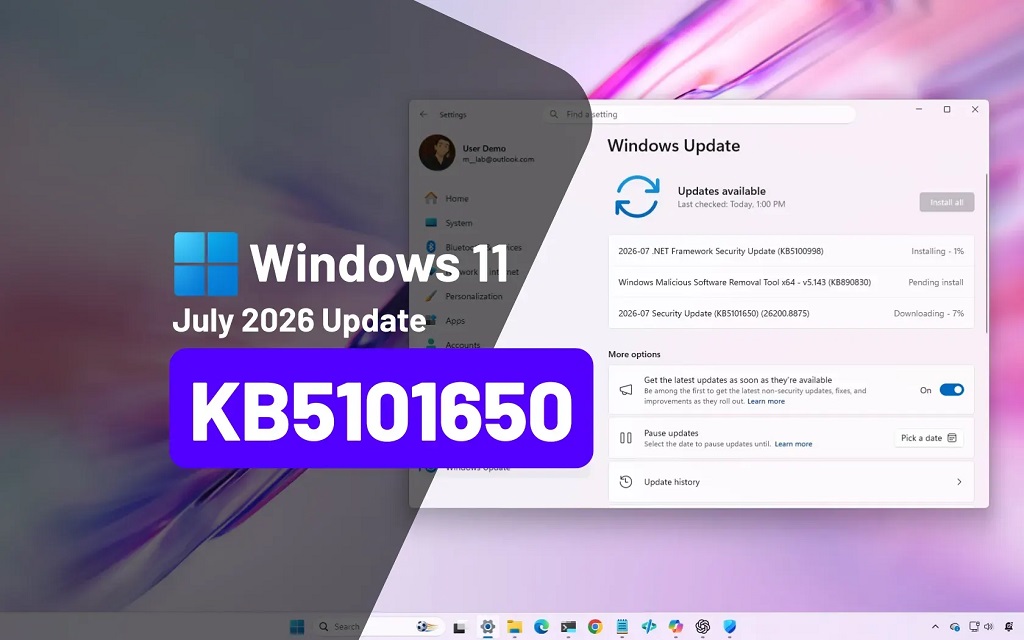
The July 2026 Patch Tuesday update is available as KB5101650 for Windows 11 versions 24H2 and 25H2. Besides essential security patches, Microsoft has included features that were previously tested through optional preview releases.
This month’s update focuses on four major areas:
- Improved security
- Better system performance
- Enhanced accessibility
- Greater reliability across Windows features
Unlike many previous monthly updates that mainly addressed bugs, this release introduces several noticeable improvements that users can benefit from immediately.
Windows Update Gets a More Flexible Pause Option
One of the most practical additions is a redesigned Windows Update pause feature.
Instead of selecting a predefined pause period, users can now choose a specific calendar date for updates to resume. Updates can still be paused for up to 35 days, but selecting an exact date makes update management much easier.
Why this matters
Many users prefer delaying updates while traveling, working on important projects, or waiting to confirm that no major issues have been reported.
With the new interface, users have greater control without permanently disabling Windows Update, which continues to protect systems once the pause expires.
Point-in-Time Restore Makes Recovery Easier
Microsoft has introduced Point-in-Time Restore, a feature designed to simplify PC recovery after software problems or failed updates.
The system can restore Windows to an earlier automatic restore point while preserving important personal data and installed applications whenever possible.
Benefits include:
- Faster recovery from failed updates
- Easier troubleshooting
- Reduced downtime
- Less need for complete Windows reinstallations
This feature is especially useful for professionals and businesses where system availability is important.
Widgets Become Less Distracting
Many Windows users found Widgets too intrusive because they opened automatically when hovering over the taskbar.
Microsoft has changed that behavior.
Widgets now:
- No longer open automatically by default
- Show fewer unnecessary notifications
- Display fewer taskbar badges
- Open directly to the dashboard on first launch
Users who prefer the previous experience can still customize Widget behavior in the Settings menu.
Accessibility Features Continue to Improve
Accessibility remains one of Microsoft’s priorities, and the July update introduces useful new options.
New Screen Tint Feature
Windows now includes Screen Tint, which places a customizable color overlay across the entire display.
Potential benefits include:
- Reduced eye strain
- Improved reading comfort
- Better visibility in different lighting conditions
- Customizable tint strength
Users can also enable Screen Tint automatically under certain conditions.
Better Magnifier Controls
The Magnifier tool has become much easier to use.
Instead of opening Windows Settings repeatedly, users can now:
- Enter an exact zoom percentage
- Adjust zoom increments directly
- Fine-tune magnification more quickly
This creates a smoother experience for users with visual impairments.
File Explorer Receives Noticeable Performance Improvements
Microsoft continues refining one of Windows’ most frequently used applications.
The July update improves File Explorer in several ways.
Faster performance
File Explorer now launches faster and responds more smoothly when:
- Opening folders
- Browsing storage devices
- Mounting virtual disk images
Better address bar support
The address bar now correctly handles:
- Double backslashes
- Quotation marks
- More complex file paths
OneDrive improvements
Microsoft also resolved issues involving:
- Duplicate OneDrive Favorites
- Rename inconsistencies
- File Explorer shortcuts running with administrator privileges
Together, these improvements make daily file management more reliable.
Bluetooth and Phone Link Become More Reliable
Wireless connectivity also receives several fixes.
Bluetooth improvements include:
- Faster AirPods detection during pairing
- Better microphone support for Beats Studio Pro
- Improved Bluetooth audio stability
- Better reconnection after hibernation
- More reliable LE Audio streaming
- Better synchronization of microphone mute status
These fixes should reduce connection interruptions and improve audio quality during calls and media playback.
Phone Link Improvements
Microsoft has refined call routing between Windows and smartphones.
Now:
- Calls remain on the phone while ringing.
- Audio transfers to the PC only after answering from the PC.
- Do Not Disturb correctly prevents incoming call sounds on Windows.
These changes make Phone Link behave more naturally.
Voice Typing Expands Language Support
Microsoft continues expanding AI-powered voice features.
The update adds improved support for:
- French
- German
- Spanish
On supported Copilot+ PCs, Windows can also improve dictated text in real time by automatically correcting:
- Grammar
- Punctuation
- Recognition errors
The system performs better even with moderate background noise, reducing the need for manual editing.
Better Printing and Networking
Several improvements target enterprise users, IT professionals, and advanced home users.
Printing enhancements
When supported, Windows now installs printers using the Internet Printing Protocol (IPP) by default.
Benefits include:
- Easier printer setup
- Better compatibility
- Improved reliability
- Simplified management
Users can still modify this behavior through Printer settings.
Networking improvements
Microsoft has also improved:
- VPN networking within Windows Subsystem for Linux (WSL)
- Virtualized networking
- Multi-monitor rendering
- Display color profile reliability
These updates mainly benefit developers, remote workers, and organizations.
AI Performance Improves on High-End PCs
Users with systems containing more than 32 GB of RAM will benefit from updated graphics memory management.
Microsoft says these changes allow Windows to handle larger local AI models more efficiently by improving graphics kernel memory allocation.
Although everyday users may not notice immediate differences, developers and AI enthusiasts should see better performance when running advanced local AI workloads.
Major Security Improvements
Security remains the biggest focus of every Patch Tuesday release.
The July 2026 update includes hundreds of vulnerability fixes across Windows components.
According to industry reports, Microsoft addressed approximately 570 security vulnerabilities, making this one of the largest monthly security updates released in recent years.
These fixes help protect users from:
- Remote code execution attacks
- Privilege escalation vulnerabilities
- Information disclosure issues
- Denial-of-service attacks
- Security bypass techniques
Installing the latest update significantly reduces exposure to newly discovered threats.
Additional Bug Fixes
Microsoft has resolved several everyday issues reported by Windows users.
Some notable fixes include:
- Incorrect notification badge counts in Microsoft Teams and WhatsApp
- Recycle Bin confirmation dialog problems
- OneDrive shortcut issues in File Explorer
- General reliability improvements across Windows
While individually small, these fixes contribute to a smoother overall experience.
Dell Compatibility Issue
Microsoft has temporarily blocked the Windows 11 July 2026 Update on a limited number of Dell computers equipped with certain Intel processors.
Reported issues include:
- Unexpected shutdowns
- Reduced performance
- Increased heat generation
- Higher battery consumption
Microsoft and Dell are jointly developing a permanent solution. Affected users will receive the update once compatibility has been verified.
If your Dell device does not receive the update immediately, it is likely due to this safeguard rather than a problem with Windows Update.
Windows 11 July 2026 Update at a Glance
| Feature | What’s New | Benefit |
|---|---|---|
| Windows Update | Calendar-based pause option | Easier update scheduling |
| System Restore | Point-in-Time Restore | Faster recovery |
| Widgets | Reduced interruptions | Cleaner desktop experience |
| Accessibility | Screen Tint and better Magnifier | Improved usability |
| File Explorer | Faster performance and bug fixes | Better productivity |
| Bluetooth | Improved pairing and stability | More reliable connections |
| Phone Link | Smarter call routing | Better cross-device experience |
| Voice Typing | New language support | Improved dictation |
| Printing | Internet Printing Protocol by default | Easier printer setup |
| AI Performance | Better memory management | Larger local AI models |
| Security | Hundreds of vulnerabilities fixed | Stronger protection |
Step-by-Step: How to Install the Windows 11 July 2026 Update
Installing the latest update only takes a few minutes.
Step 1: Open Settings
Press Windows + I to open the Settings app.
Step 2: Go to Windows Update
Select Windows Update from the left-hand menu.
Step 3: Check for Updates
Click Check for updates.
Windows will search Microsoft’s servers for the latest available update.
Step 4: Download and Install
If the update is available for your device, click Download and Install.
Step 5: Restart Your Computer
After installation completes, restart your PC to finish applying the update.
Practical Tips Before Installing
To ensure a smooth installation experience, consider these best practices:
- Back up important files before major updates.
- Keep at least 20 GB of free storage available.
- Connect laptops to a power source during installation.
- Close unnecessary applications before restarting.
- Allow Windows enough time to complete configuration after rebooting.
- If your device is managed by an organization, check with your IT administrator before installing updates.
Who Should Install Windows 11 July 2026 Update?
Most Windows 11 users should install the update as soon as it becomes available because it includes important security fixes alongside meaningful performance improvements.
You may choose to wait temporarily if:
- Your PC has critical work software that requires compatibility testing.
- You own an affected Dell system currently under Microsoft’s safeguard hold.
- Your organization follows a staged deployment process for Windows updates.
For everyone else, installing the latest security update remains the safest option.
Frequently Asked Questions
Which Windows versions receive the July 2026 Update?
The update is available for supported Windows 11 versions 24H2 and 25H2.
Is the Windows 11 July 2026 Update free?
Yes. Like other Windows security updates, it is available free of charge for supported Windows 11 devices.
Why can’t I see the update?
Microsoft may release updates gradually. Some devices, including certain Dell systems, are temporarily blocked because of compatibility issues.
Does this update improve gaming performance?
The update mainly focuses on security, stability, File Explorer improvements, Bluetooth reliability, networking, and AI performance rather than gaming-specific enhancements.
Should I install the update immediately?
For most users, yes. The update includes important security fixes and numerous reliability improvements that help keep Windows protected and running smoothly.
Final Thoughts (Windows 11 July 2026 Update)
The Windows 11 July 2026 Update is one of Microsoft’s most significant monthly releases in recent months. Beyond fixing hundreds of security vulnerabilities, it introduces practical improvements that users will notice in daily use, including a more flexible Windows Update experience, faster File Explorer performance, better Bluetooth reliability, expanded accessibility features, and enhanced support for AI workloads on capable hardware.
While a small number of Dell devices may experience a temporary delay due to compatibility safeguards, the update represents an important step forward for Windows 11. For most users, installing it promptly is the best way to benefit from stronger security, improved stability, and a more polished Windows experience.
Also read: Best AI Tools for Students in 2026 | Complete Guide


