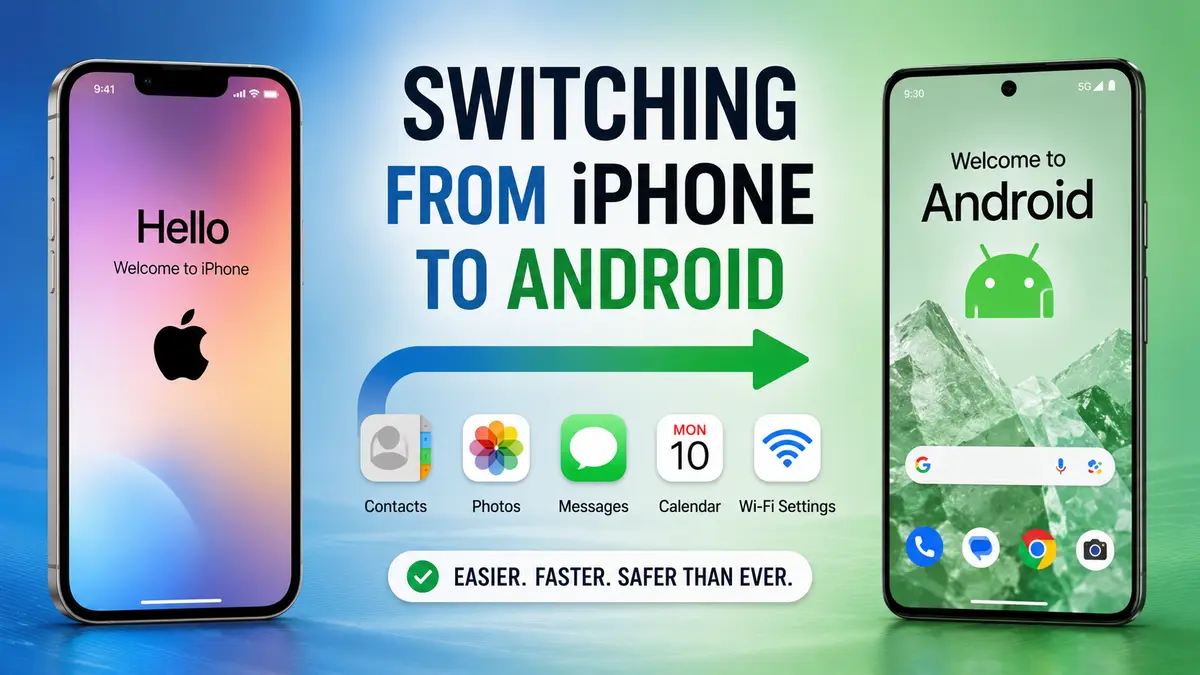
Switching From iPhone to Android is Now Easier Than Ever
Switching From iPhone to Android has become significantly easier thanks to major improvements in data transfer tools, cross-platform messaging, eSIM support, and cloud services. Modern Android phones can now migrate contacts, photos, messages, apps, and settings from an iPhone in just a few steps, making the transition far less complicated than it was a few years ago.
For years, moving from an iPhone to an Android device felt like a difficult process. Users often worried about losing photos, messages, contacts, app purchases, or even their phone number during the transition. While Apple’s tightly integrated ecosystem still offers many advantages, Android manufacturers and Google have invested heavily in making switching simpler, faster, and more reliable.
Recent improvements in migration tools, universal messaging standards, cloud synchronization, and eSIM compatibility have dramatically reduced the barriers that once kept users locked into a single ecosystem. Whether you’re upgrading to the latest Android flagship or simply looking for a more customizable smartphone experience, switching is no longer the intimidating task it once was.
This latest shift comes as both Google and Android manufacturers continue refining their migration experience, allowing millions of users to move between platforms with minimal effort.
Why More People Are Switching From iPhone to Android?
The smartphone market has become more competitive than ever. Android manufacturers now offer premium hardware, advanced AI features, longer software support, and cameras that rival or exceed many flagship devices.
Several factors are encouraging users to consider making the move from iPhone to Android.
Better Hardware Choices
Unlike Apple’s relatively limited lineup, Android offers devices across nearly every price segment. Consumers can choose from compact phones, foldables, gaming devices, photography-focused smartphones, or ultra-premium flagships.
Popular options include:
- Samsung Galaxy S and Z series
- Google Pixel smartphones
- OnePlus flagship devices
- Xiaomi premium phones
- Honor Magic series
- Motorola Edge lineup
This variety allows buyers to choose a device that better matches their budget and preferences.
AI Is Becoming a Major Selling Point
Artificial intelligence has become one of Android’s biggest strengths.
Many modern Android phones include AI-powered features such as:
- Live language translation
- Call summarization
- AI photo editing
- Smart writing assistance
- Circle to Search
- Real-time transcription
- Intelligent voice assistants
- Context-aware recommendations
These capabilities continue expanding with every software update.
Greater Customization
Android gives users much more control over how their phones look and behave.
Examples include:
- Custom launchers
- Home screen widgets
- Split-screen multitasking
- Custom icons
- Flexible default apps
- Advanced automation
- File management
- Theme customization
For users who prefer flexibility over simplicity, Android remains the stronger choice.
What Has Changed? Why the Switching Process from iPhone to Android Is Much Easier?
Several important developments have transformed the migration experience.
Improved Data Transfer Apps
Most Android manufacturers now include dedicated migration applications.
Examples include:
| Android Brand | Migration Tool |
|---|---|
| Google Pixel | Android Switch |
| Samsung | Smart Switch |
| OnePlus | Clone Phone |
| Xiaomi | Mi Mover |
| Motorola | Motorola Migrate alternatives |
These tools automatically transfer:
- Contacts
- Photos
- Videos
- Messages
- Call history
- Calendars
- Wallpapers
- Wi-Fi settings
- Apps (where available)
Instead of manually copying files, users simply connect both phones using a cable or Wi-Fi.
Faster USB-C Transfers
Many newer iPhones now use USB-C, making direct wired transfers much faster.
Benefits include:
- Higher transfer speeds
- More reliable migration
- Fewer connection errors
- Reduced setup time
Large photo libraries that previously took hours can often be transferred much more quickly.
Better Cloud Integration
Cloud storage has reduced dependence on one specific ecosystem.
Services like:
- Google Photos
- Google Drive
- Microsoft OneDrive
- Dropbox
allow users to access their files regardless of which operating system they choose.
This means switching phones no longer requires moving every file manually.
RCS Messaging Has Reduced One of the Biggest Barriers
Messaging has traditionally been one of the biggest reasons users stayed with iPhone.
For years, iMessage provided features unavailable between Apple and Android users.
However, the growing adoption of Rich Communication Services (RCS) has narrowed this gap considerably.
Modern RCS supports:
- High-quality photos
- Read receipts
- Typing indicators
- Better group chats
- Larger file sharing
- End-to-end encryption in supported conversations
Although iMessage remains exclusive to Apple devices, cross-platform conversations are becoming much smoother than before.
eSIM Support Makes Carrier Switching Simpler
Another major improvement is wider eSIM adoption.
Previously, changing devices often required:
- Visiting a carrier store
- Replacing a SIM card
- Waiting for activation
Today, many carriers support digital eSIM transfers that can be completed in minutes.
Benefits include:
- Faster activation
- Multiple numbers on one device
- Easier international travel
- Less physical hardware
This removes another common pain point when moving from iPhone to Android.
What Data Can You Transfer from iPhone to Android?
Modern migration tools support much more than basic contacts.
Usually Transferable from iPhone to Android
| Data | Supported |
|---|---|
| Contacts | ✅ |
| Photos | ✅ |
| Videos | ✅ |
| Calendars | ✅ |
| SMS Messages | ✅ |
| Call History | ✅ |
| Wallpapers | ✅ |
| Wi-Fi Settings | ✅ |
| Device Preferences | Partial |
| Alarms | Partial |
What May Not Transfer from iPhone to Android?
Some content remains tied to Apple’s ecosystem.
Examples include:
- Purchased iOS apps
- App-specific saved data
- Apple Wallet passes
- Apple Pay cards
- iCloud Keychain passwords
- Some health data
- Certain game progress
- Apple-exclusive subscriptions
Users should review important information before beginning the migration.
Step-by-Step Guide to Switching From iPhone to Android
Moving from an iPhone to Android phone is now a guided process that requires very little technical knowledge. Most Android manufacturers include an on-screen setup wizard that walks users through each stage, making it easy to transfer essential data and configure the new device. Spending a few extra minutes preparing your iPhone before the transfer can help ensure everything moves over smoothly and reduce the chances of needing to reset the process later.
Step 1: Prepare Your iPhone Before You Begin
Before starting the migration, make sure your iPhone is ready for the transfer. A few simple checks can save time and prevent interruptions during setup.
It’s a good idea to:
- Update iOS to the latest available version.
- Connect to a stable Wi-Fi network.
- Charge your iPhone to at least 50 percent, or keep it connected to a charger.
- Ensure you know your Apple ID password, as you may be asked to verify your account during the process.
- Disable Low Power Mode temporarily to prevent background tasks from being paused.
Taking these precautions helps the transfer process run more efficiently, especially if you have a large amount of data.
Step 2: Turn On Your New Android Phone
When you power on your new Android device for the first time, you’ll be greeted with the initial setup screen. Follow the prompts to choose your language, region, and network connection.
During setup, most Android phones automatically ask whether you’re switching from another device. Select the option to transfer data from an iPhone, and the phone will guide you through the remaining steps.
If you’ve already completed the initial setup, many Android devices still allow you to launch the migration tool later through the Settings app.
Step 3: Connect Both Devices
Depending on your Android phone, you’ll be given one or more connection options. The setup wizard will explain which method is recommended for your device.
The most common methods include:
- Connecting both phones with a compatible USB-C or Lightning cable.
- Using a wireless connection if supported.
- Scanning a QR code to establish a secure connection between the devices.
Once connected, your Android phone will detect the iPhone and prepare the transfer automatically.
Step 4: Choose What You Want to Transfer from From iPhone to Android
Instead of copying everything automatically, most migration tools let you decide which categories of data you’d like to move.
You can typically select:
- Contacts
- Photos
- Videos
- Calendar events
- SMS messages
- Call history
- Wallpapers
- Device settings where supported
If you’re setting up a phone with limited storage, selecting only the data you need can significantly reduce transfer time.
Step 5: Sign In to Your Google Account
During setup, you’ll be asked to sign in with a Google account. This account becomes the foundation of your Android experience and allows your phone to synchronize important services.
Signing in enables features such as:
- Google Play Store downloads
- Gmail
- Google Photos backup
- Google Drive storage
- Calendar synchronization
- Find My Device
- Device backup and restore
If you don’t already have a Google account, you can create one during the setup process.
Step 6: Review Permissions and Privacy Settings
After the data transfer finishes, Android will ask you to review several privacy and security settings. This is a good opportunity to customize how your phone handles location access, notifications, app permissions, and backups.
Take a few minutes to review these settings instead of accepting every default option. Adjusting them early helps create a more personalized and secure experience.
Step 7: Set Up Security Features
Before you begin using your new phone regularly, configure your preferred security method.
Most Android devices support:
- Fingerprint recognition
- Facial recognition
- PIN codes
- Passwords
- Pattern unlock
You should also enable Google’s Find My Device service, which allows you to locate, lock, or erase your phone remotely if it’s ever lost or stolen.
Step 8: Check That Everything Has Transferred Correctly From iPhone to Android
Once the migration is complete, spend a few minutes verifying that your important information is available on your new phone.
Review items such as:
- Your contact list
- Recent photos and videos
- Calendar appointments
- Text messages
- Notes or reminders that use cross-platform apps
- Downloaded applications
Confirming everything before resetting or trading in your iPhone gives you peace of mind and ensures that no important information has been overlooked.
Step 9: Keep Your iPhone for a Few Days
Even after successfully switching, it’s wise not to erase your old iPhone immediately.
Keeping it for several days allows you to:
- Verify that all important data has been transferred.
- Access any information you may have forgotten.
- Complete account verification requests that may be sent to your previous device.
- Ensure your new Android phone is functioning as expected before permanently resetting the iPhone.
Once you’re completely satisfied that everything is working properly, you can securely erase your iPhone if you plan to sell, recycle, or give it to someone else.
Apps Are Easier to Replace Than Ever
One concern for many users is whether their favorite apps exist on Android.
Fortunately, almost every major service is now available across both platforms.
Examples include:
- TikTok
- Spotify
- Netflix
- YouTube
- Microsoft Office
- Adobe Lightroom
- Zoom
- Slack
Most apps automatically restore your account once you sign in.
Password Managers Simplify Login Migration
Remembering dozens of passwords can make switching frustrating.
Fortunately, password managers allow seamless access across devices.
Popular choices include:
- Google Password Manager
- 1Password
- Bitwarden
- Dashlane
- LastPass
Many browsers also synchronize saved passwords automatically.
Moving Photos Is No Longer a Challenge
Photos often represent years of memories.
Fortunately, Google Photos makes migration particularly straightforward.
Advantages include:
- Automatic backups
- AI search
- Face recognition
- Shared albums
- Cloud synchronization
- Easy restoration
Users can continue accessing their photo library from nearly any device.
What About Apple Services?
Some Apple services remain exclusive.
These include:
- Apple Pay
- FaceTime
- iMessage
- Apple Fitness+
- Apple News+
However, alternatives exist for nearly every service.
| Apple Service | Android Alternative |
|---|---|
| Apple Pay | Google Wallet |
| FaceTime | Google Meet |
| iCloud Drive | Google Drive |
| Apple Photos | Google Photos |
| Safari | Chrome |
| Apple Notes | Google Keep |
Common Challenges After Switching
Even though migration has improved, users may still experience some adjustments.
Learning a New Interface
Android’s navigation differs depending on the manufacturer.
Fortunately, most users adapt within a few days.
Finding Settings
Settings menus may initially seem unfamiliar.
Using Android’s built-in search feature helps locate options quickly.
App Layout Differences
Some apps have different interfaces on Android.
Fortunately, core functionality usually remains identical.
Benefits You May Notice Immediately
Many users report enjoying several Android advantages shortly after switching.
These include:
- Faster charging
- More customization
- Better multitasking
- Advanced AI features
- Improved file management
- Expandable storage on select models
- More hardware choices
- Competitive pricing
Situations Where Staying With iPhone May Make More Sense
Switching is not always the right decision.
You may prefer remaining with an iPhone if you heavily rely on:
- iMessage
- FaceTime
- Apple Watch
- AirDrop
- Final Cut Camera workflows
- Family Sharing
- Apple One subscriptions
- Deep integration with Mac computers
Users deeply invested in Apple’s ecosystem may experience a smoother overall experience by staying within that environment.
Industry Trends Suggest Platform Switching Will Continue
The smartphone industry is steadily moving toward better interoperability. Messaging standards are improving, cloud services are becoming increasingly platform-independent, and device manufacturers recognize that simplifying migration encourages healthy competition.
Companies are investing in tools that reduce friction because consumers expect the freedom to choose devices without worrying about losing years of personal data. Features such as universal cloud backups, standardized USB-C connectivity, cross-platform productivity apps, and AI-powered setup assistants are all contributing to a future where changing smartphone ecosystems is as simple as upgrading to a new phone.
As Android manufacturers continue enhancing their software experiences and Apple adopts more universal standards where required, switching between platforms is likely to become even easier in the coming years.
Frequently Asked Questions
1. Is Switching From iPhone to Android difficult today?
No. Modern Android migration tools can transfer most of your important data, including contacts, photos, messages, calendars, and many settings with minimal effort.
2. Will I lose my photos when switching?
Not if you back up your iPhone first or use Google Photos or your Android manufacturer’s migration tool. Your photo library can usually be transferred safely.
3. Can I keep my phone number?
Yes. In most cases, you can keep your existing phone number when moving to an Android phone. If you use eSIM, many carriers also support digital activation and transfer.
4. Do my iPhone apps work on Android?
You will need to download the Android versions from the Google Play Store. Most popular apps are available on both platforms, though app purchases and some app-specific data may not transfer.
5. What happens to iMessage after switching?
You’ll stop receiving iMessages once you move your number to Android. It’s recommended to disable iMessage on your iPhone before switching to ensure messages are delivered as standard SMS or RCS where supported.
6. Can I transfer WhatsApp chats?
Yes. WhatsApp provides an official chat transfer feature that supports moving chat history from iPhone to many Android devices during setup.
7. What data cannot usually be transferred?
Apple Wallet cards, Apple Pay information, certain Health app data, iCloud Keychain passwords, some game saves, and purchased iOS apps generally do not transfer directly.
8. Is Android more customizable than iPhone?
Yes. Android typically offers more customization options, including home screen layouts, widgets, launchers, themes, default apps, multitasking features, and advanced automation tools.
Conclusion
Switching From iPhone to Android is no longer the complex and risky process it once was. Modern migration tools can transfer most important data automatically, while improvements in RCS messaging, eSIM technology, cloud storage, and cross-platform apps have eliminated many of the traditional obstacles. For many users, the setup process now takes less time and requires far fewer manual steps than in previous years.
The decision ultimately depends on your priorities. If you value customization, broader hardware choices, advanced AI features, and greater flexibility, Android offers compelling reasons to switch. On the other hand, users deeply invested in Apple’s ecosystem may still prefer to stay with iPhone. Either way, today’s smartphone landscape gives consumers more freedom than ever before to choose the platform that best fits their needs.
Also read: X Rebuilds New Android App from Scratch: Faster Performance