
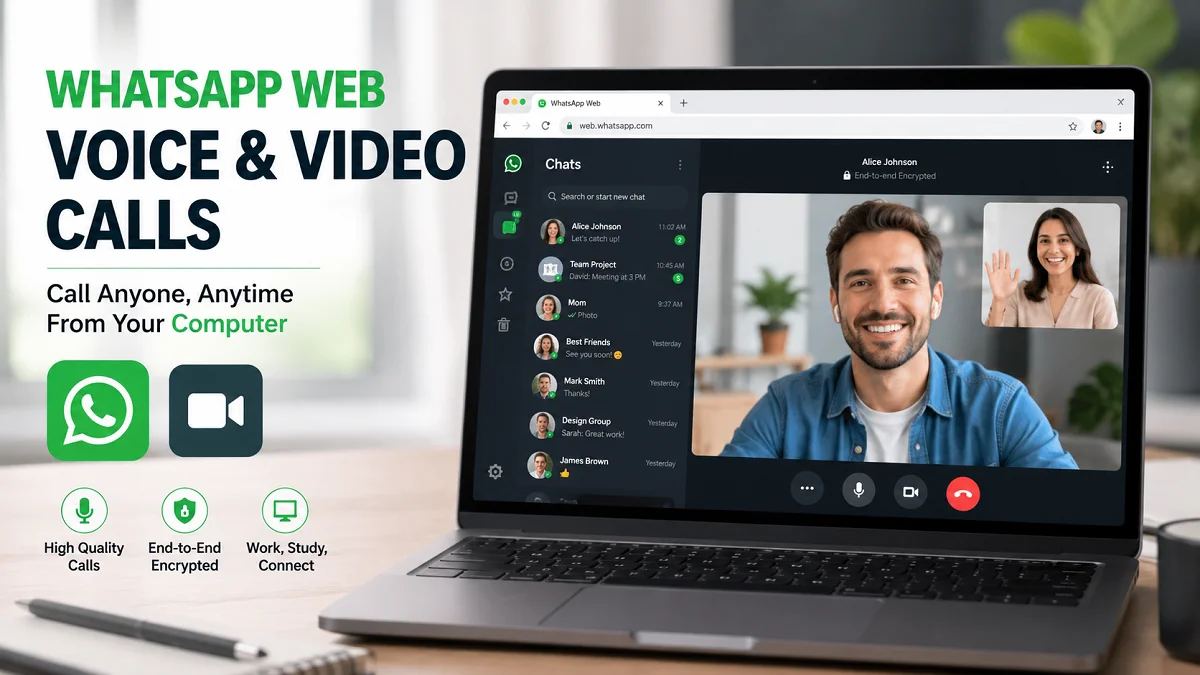
WhatsApp Web Voice and Video Calls: New Upgrade 2026
WhatsApp Web voice and video calls allow users to communicate directly from a computer without depending fully on a smartphone. WhatsApp now supports calling through a browser or desktop interface, using your computer’s microphone, speakers, and camera for real-time communication.
This upgrade improves productivity for remote workers, students, freelancers, and office users who spend most of their time on laptops. It also reduces interruptions caused by switching between devices during work or study.
WhatsApp Web voice and video calls let users make and receive calls directly from a computer using a browser or desktop app. After scanning a QR code, users enable microphone and camera access and start calling instantly. It improves convenience, multitasking, and communication efficiency for personal and professional use.
What WhatsApp Web Voice and Video Calls Upgrade
WhatsApp Web calling is a built-in feature that extends WhatsApp communication from mobile devices to computers. It allows users to start voice and video calls directly from chat windows on a desktop or browser.
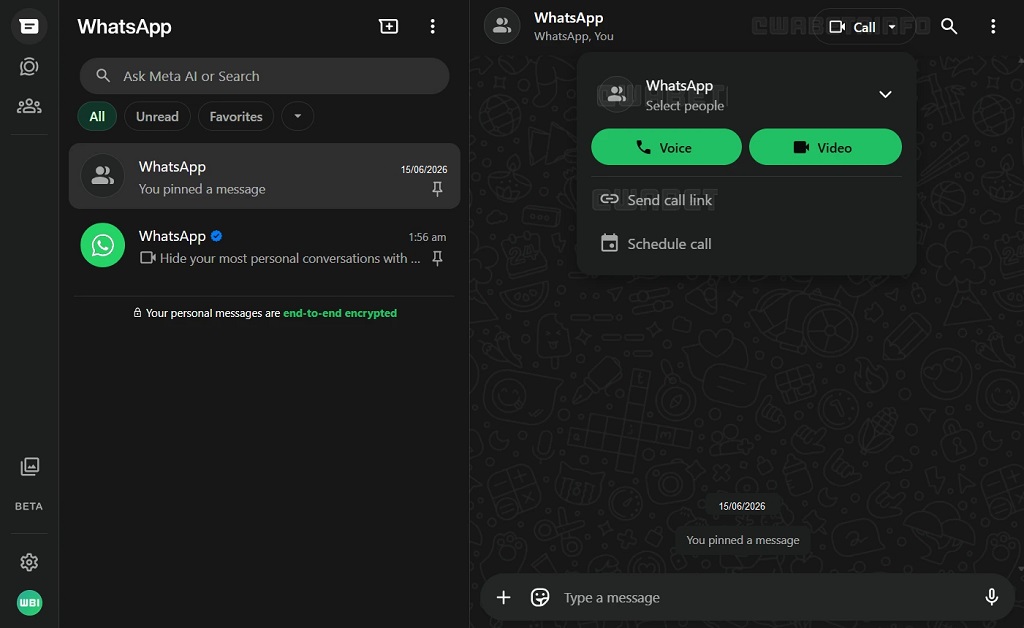
Instead of using a phone for every call, users manage conversations on a larger screen with full audio and video support. This makes WhatsApp a stronger alternative for quick meetings, interviews, and personal conversations.
The system works by syncing your WhatsApp account through a QR code login, then using your computer’s hardware for communication. It ensures continuity between mobile and desktop sessions.
Requirements to Use WhatsApp Web Voice and Video Calls
Before starting, users must meet a few essential technical and setup requirements. These ensure smooth performance and stable call quality.
- A modern browser such as Google Chrome, Microsoft Edge, or Firefox
- Latest version of WhatsApp Web or WhatsApp Desktop application
- Stable broadband or strong Wi-Fi connection for video calls
- Functional microphone, speakers, and webcam connected to the device
- Permission enabled for camera and microphone in browser settings
- Active WhatsApp account already linked via QR code login
If any of these conditions are missing, users may face lag, call drops, or audio issues during communication.
How to Make WhatsApp Web Voice and Video Calls
Step 1: Open WhatsApp Web
Open your browser and go to WhatsApp Web. Scan the QR code using your smartphone to log in. Ensure your phone stays connected to the internet during setup.
Step 2: Select a Contact
Open the chat of the person you want to call. You can also search for contacts using the search bar at the top of the chat list.
Step 3: Start the Call
Click the voice call or video call icon in the top right corner of the chat window. WhatsApp immediately starts dialing the selected contact.
Step 4: Allow Permissions
Your browser will request access to microphone and camera. Accept these permissions to enable full audio and video functionality.
Step 5: Manage the Call
During the call, you can mute your microphone, disable video, switch devices, or end the call using on-screen controls.
Benefits of WhatsApp Web Calling
WhatsApp Web calling provides several real-world advantages for everyday users and professionals. With this new upgrade you:
- Manage communication directly while working on documents or browsing
- Avoid switching between phone and computer repeatedly
- Attend meetings or interviews faster from a single device
- Use a larger screen for clearer video interaction
- Improve productivity during multitasking sessions
For remote teams and freelancers, this feature reduces dependency on third-party meeting tools for basic communication.
WhatsApp Web vs Mobile App vs Desktop App
| Feature | Mobile App | Web Version | Desktop App |
|---|---|---|---|
| Voice Calls | Fully supported | Supported | Fully supported |
| Video Calls | Fully supported | Supported | Fully supported |
| Installation Required | Yes | No | Yes |
| Performance Stability | Very high | Medium | Very high |
| Device Dependency | None | Needs login sync | Partial sync required |
| Best Use Case | On-the-go communication | Quick access on browser | Work and meetings |
The desktop app delivers the most stable calling experience, while WhatsApp Web works best for quick, no-install access.
Common Problems and Fixes
Low Audio or Video Quality
Poor internet speed often causes lag or pixelated video. Users should close streaming apps, pause downloads, and switch to stable Wi-Fi for better performance.
Camera Not Working
This usually happens when browser permissions are blocked. Users must allow camera access manually in browser settings and restart the session.
Call Not Connecting
Sometimes WhatsApp Web fails to connect due to session issues. Logging out and scanning the QR code again usually fixes the problem.
Echo or Background Noise
Laptop speakers often cause echo during calls. Using wired or wireless headphones significantly improves clarity and reduces feedback.
Microphone Not Detected
Users should check system sound settings and ensure the correct input device is selected in both the operating system and browser.
Tips for Better WhatsApp Web Calls
You can improve call quality significantly by following a few practical steps:
- Use high-speed and stable internet instead of shared or weak connections
- Close unnecessary browser tabs and background applications
- Keep your browser updated to the latest version
- Use a headset or external microphone for clearer sound
- Sit in a well-lit environment for better video clarity
- Avoid multitasking-heavy apps like large downloads during calls
These small adjustments reduce interruptions and improve overall call stability.
FAQs
Can I use WhatsApp Web calls without my phone?
You still need your phone for initial login, but after syncing, you can handle calls directly from your computer.
Is WhatsApp Web calling free to use?
Yes, WhatsApp does not charge for calls. It only uses your internet data.
Which browser works best for WhatsApp Web calls?
Chrome and Microsoft Edge offer the most stable performance for calling.
Why does WhatsApp Web lag during calls?
Lag usually happens due to weak internet, heavy background apps, or outdated browsers.
Are WhatsApp Web calls secure?
Yes, WhatsApp protects all calls with end-to-end encryption for privacy and security.
Conclusion
WhatsApp Web voice and video calls provide a complete communication experience directly on desktop browsers and computers. Users can now handle personal and professional calls without relying only on smartphones. With proper setup, good internet, and correct device settings, this feature delivers stable, clear, and efficient communication for everyday use.
Also read: WhatsApp Business AI Agent: New Features, Setup & Benefits