
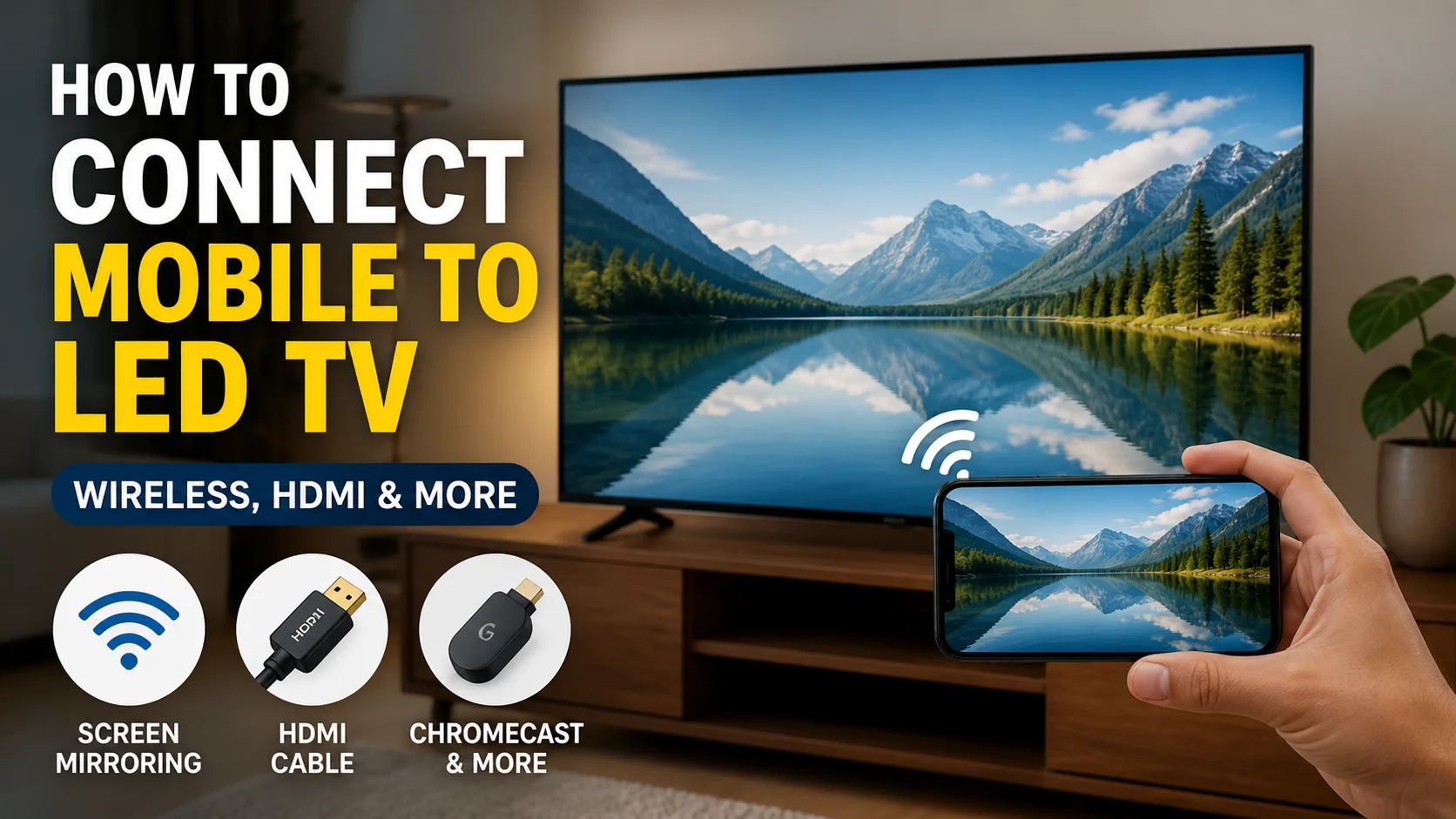
How to Connect Mobile to LED TV (Step-by-Step Guide)
How to Connect Mobile to LED TV: Connecting your mobile to an LED TV allows you to enjoy videos, photos, games, and apps on a much larger screen. Whether you’re using an Android phone or an iPhone, several reliable methods are available—both wireless and wired.
To connect a mobile to an LED TV, you can use wireless screen mirroring (Wi-Fi), an HDMI cable with a compatible adapter, or streaming devices like Chromecast. Wireless methods are convenient for smart TVs, while HDMI ensures a stable connection and works with almost all TVs, including older models.
Why Connect Your Mobile to an LED TV?
We often rely on smartphones for entertainment and productivity, but their small screens can be limiting. Connecting your phone to a TV enhances the experience significantly.
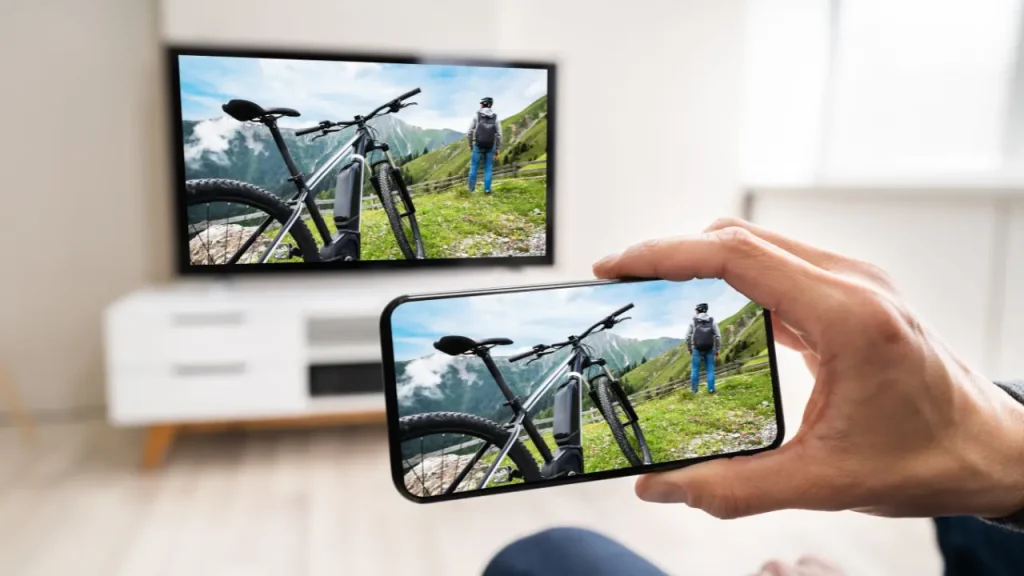
Common use cases include:
- Watching movies and streaming content
- Sharing photos and videos with others
- Playing mobile games on a bigger screen
- Delivering presentations or online lessons
- Browsing apps with better visibility
Method 1: Connect Mobile to LED TV via Screen Mirroring (Wireless)
Wireless screen mirroring is the easiest and most popular method, especially for smart TVs.
Requirements
- A smart LED TV with casting support
- A smartphone (Android or iPhone)
- Both devices connected to the same Wi-Fi network
Step-by-Step Instructions
- Connect your mobile and TV to the same Wi-Fi network
- Open your TV settings and enable Screen Mirroring, Cast, or Wireless Display
- On your mobile device:
- Android: Open Cast, Smart View, or Screen Mirror
- iPhone: Use AirPlay (if supported)
- Select your TV from the available device list
- Confirm the connection if required
Your mobile screen will now appear on the TV.
When to Use This Method
- You have a smart TV
- You want a cable-free setup
Method 2: Connect Mobile to LED TV Using HDMI Cable (Wired)
A wired connection is the most stable and universal option.
What You Need
- HDMI cable
- Compatible adapter:
- USB-C to HDMI (for most modern Android phones)
- Lightning to HDMI (for iPhones)
Step-by-Step Instructions
- Plug the HDMI cable into your TV
- Connect the adapter to your phone
- Attach the HDMI cable to the adapter
- Switch your TV input to the HDMI source
- Your phone screen should display instantly
Advantages of HDMI Connection
- No lag or delay
- Works without Wi-Fi
- Ideal for gaming, streaming, and presentations
Method 3: Connect Mobile to LED TV Using Streaming Devices
If your TV does not support built-in casting, external devices can bridge the gap.
Popular Streaming Devices
- Google Chromecast
- Amazon Fire TV Stick
- Android TV Box
How to Set It Up
- Plug the device into your TV’s HDMI port
- Connect it to Wi-Fi
- Use your mobile to cast content via supported apps
This method effectively turns a regular TV into a smart TV.
Comparison: Best Method to Connect Mobile to LED TV
| Method | Internet Required | Ease of Use | Compatibility | Best For |
|---|---|---|---|---|
| Screen Mirroring | Yes | Very Easy | Smart TVs only | Streaming, casual use |
| HDMI Cable | No | Easy | All TVs | Gaming, stable performance |
| Streaming Devices | Yes | Moderate | TVs with HDMI | Upgrading non-smart TVs |
Common Problems and How to Fix Them
Mobile Not Detecting TV
- Ensure both devices are on the same Wi-Fi network
- Restart both devices
- Turn screen mirroring off and on again
Lag or Delay in Screen Mirroring
- Move closer to the router
- Reduce network usage
- Switch to HDMI for better performance
No Audio on TV
- Check volume levels on both devices
- Verify audio output settings
- Reconnect the connection
Best Practices for a Smooth Experience
- Keep your TV and mobile software updated
- Use a strong and stable Wi-Fi connection
- Choose high-quality cables and adapters
- Close unnecessary background apps
Frequently Asked Questions (FAQs)
Can I connect my mobile to a non-smart LED TV?
Yes, you can use an HDMI cable or a streaming device like Chromecast to connect your mobile to a non-smart TV.
Do I need internet for screen mirroring?
Yes, wireless screen mirroring typically requires both devices to be on the same Wi-Fi network. HDMI does not require internet.
Why is my screen mirroring not working?
It may be due to incompatible devices, incorrect settings, or network issues.
Which method is best for gaming?
A wired HDMI connection is best because it provides minimal latency and a stable connection.
Can I watch streaming apps on my TV through mobile?
Yes, but some apps may limit screen mirroring. Using Chromecast or similar devices is often more reliable.
Final Thoughts
Connecting your mobile to an LED TV is simple once you understand the available options. Wireless methods offer convenience, while wired connections provide stability and performance. Streaming devices add flexibility for older TVs.
Choose the method that best suits your setup, and you’ll enjoy a richer, more immersive viewing experience on a larger screen.
Also read: WhatsApp New Features: What’s New and How to Use Them


